Developer Features
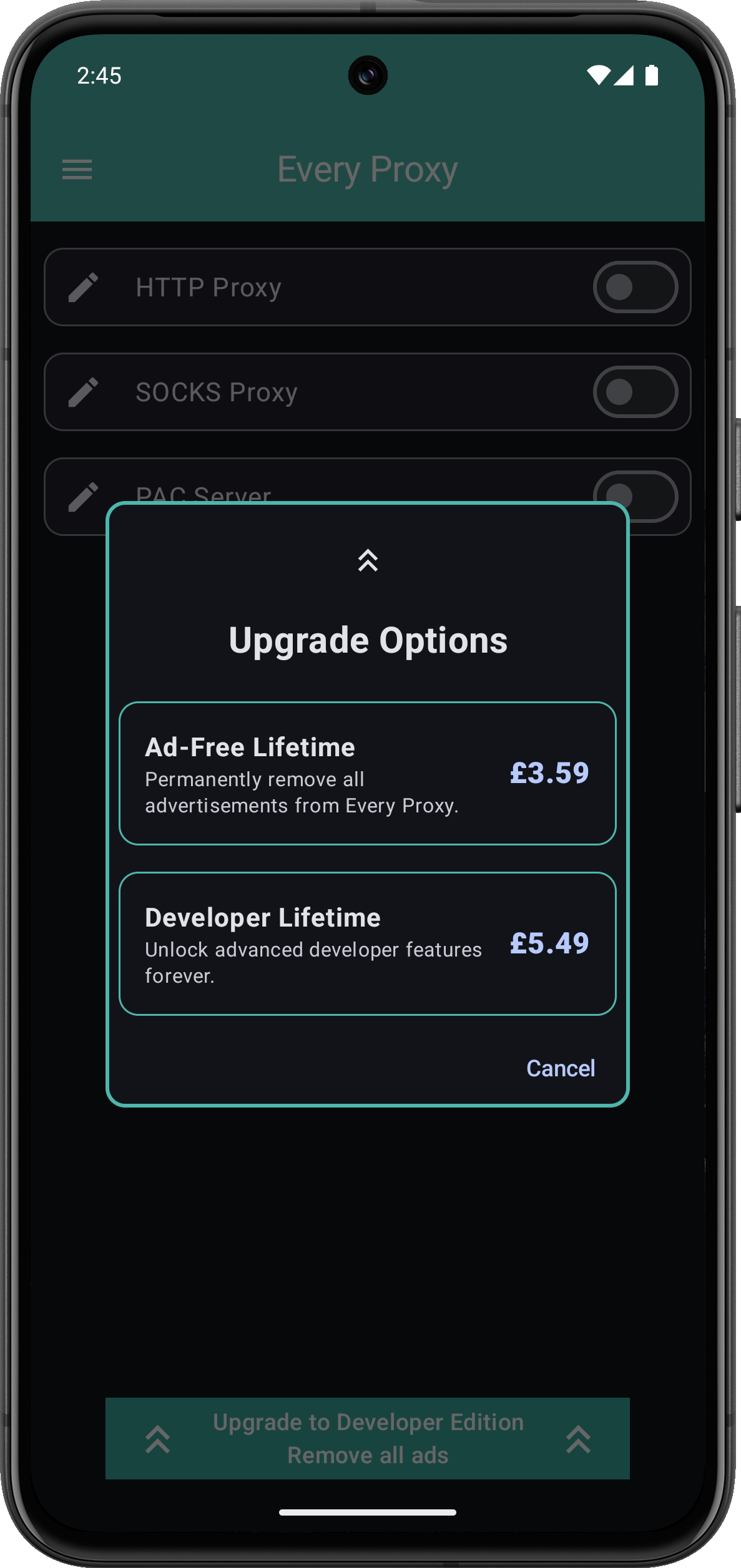
The Developer Edition in-app purchase provides advanced transparency into the network traffic passing through your device.
Traffic Monitoring Tools
-
Session Log
A historical record of proxy service events. Use this to verify when the proxy server was initialized, identify service interruptions, and confirm overall uptime.
-
Active Connections
A real-time "who's who" of your proxy traffic. This dialog displays every active socket, showing you exactly which Host and Port each client is currently accessing.
Live Monitoring & Diagnostics
Active Connections
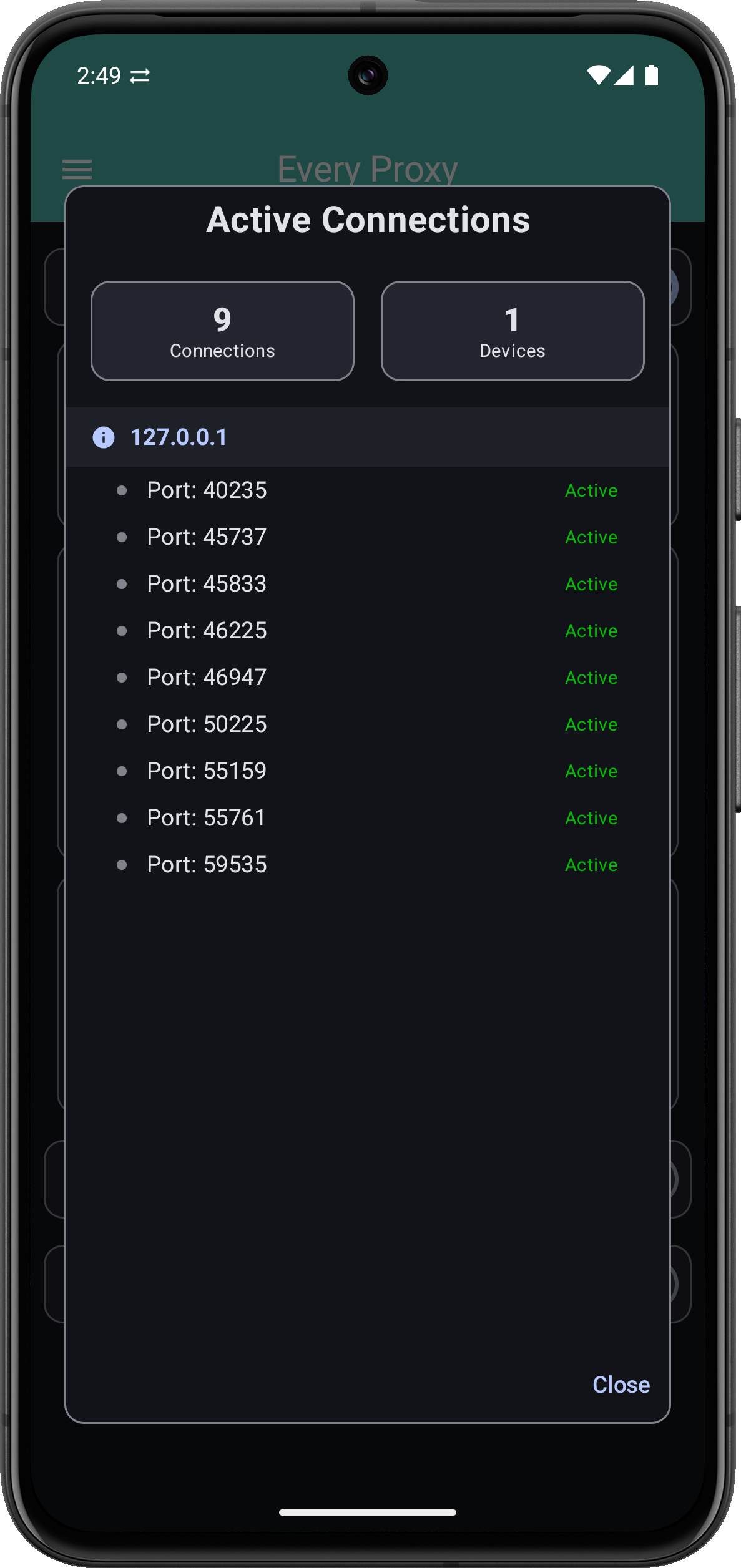
The Active Connections dialog provides a live view of every request passing through the proxy. This is the most effective way to see which devices are connected and which endpoints they are reaching.
Session Log
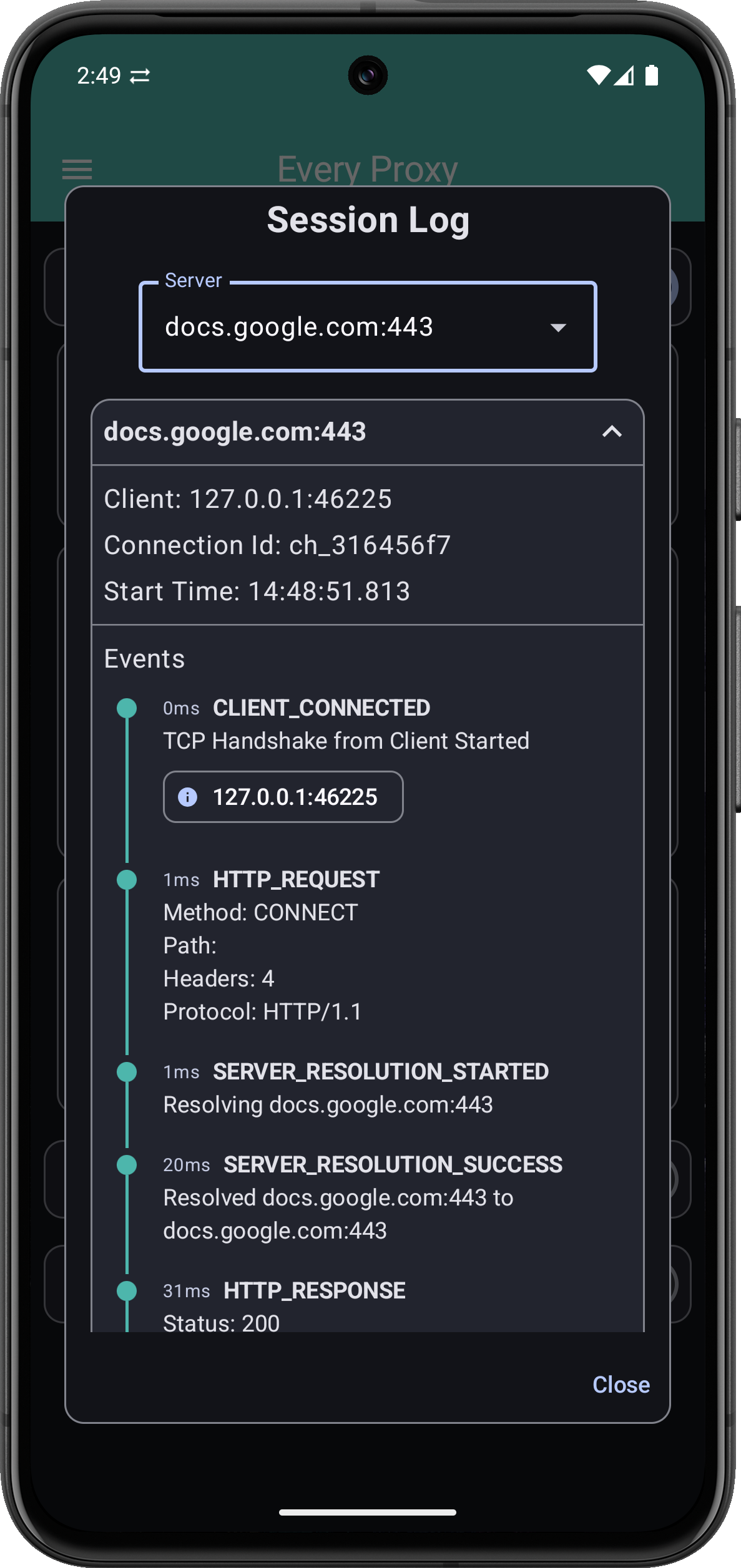
The Session Log tracks the lifecycle of your proxy services. It records initialization steps and any errors encountered by the internal server.
Use Cases for Monitoring
1. Connection Verification
If you aren't sure if your laptop is successfully "talking" to Every Proxy, open the Connections dialog. If you see an entry for your laptop's IP and a destination host (like google.com:443), you know the link is working.
2. Identifying "Ghost" Traffic
Sometimes apps run in the background and consume data without you realizing it. The Connections dialog lets you see exactly what endpoints are being reached in real-time.
3. Debugging Protocol Mismatches
If a client tries to use a SOCKS proxy on an HTTP port, the Session Log will help you identify why the handshake failed, helping you correct your client settings quickly.
Future Roadmap
We are actively developing the Developer suite. Future updates are planned to include log export capabilities and deeper packet inspection metrics.