Developer Edition & Upgrade Options
Every Proxy is free to use and supported by clean advertisements. For network administrators, developers, sysadmins, and users who want an ad-free experience, we offer one-time lifetime upgrades directly through Google Play.
Upgrade Tiers Comparison
-
Free Core Edition
- Full Server Capabilities: HTTP, HTTPS, SOCKS4, SOCKS5, and PAC servers.
- Full VPN Client Capabilities: Tun2Socks and Tun2Http engines.
- Network Tools: Real-time traffic throughput graphs, interface binding, and mDNS hostname broadcasting (
every-proxy.local). - Monetization: Ad-supported.
-
Ad-Free Edition
- 100% Ad-Free: Permanently removes all banner and interstitial advertisements across the entire application.
- Lifetime Purchase: One-time payment tied to your Google Play account; no recurring subscriptions.
- Multi-Device: Automatically applies to all your Android devices signed in with the same Google account.
-
Developer Edition (All-In-One)
- Everything in Ad-Free: Permanently removes 100% of advertisements forever.
- Active Connections Inspector: Live monitoring of connected client IPs, target hosts, and open sockets.
- Diagnostic Session Log: Comprehensive connection telemetry, latency statistics, and UDP destination tracking.
- JSON Session Export: Export complete session logs for external analysis in Wireshark, jq, or QA scripts.
- Custom Routing Rules Engine: Define surgical rerouting rules (FROM Host/Port → TO Host/Port) directly inside the proxy engine.
Developer Toolkit In-Depth
1. Active Connections Inspector
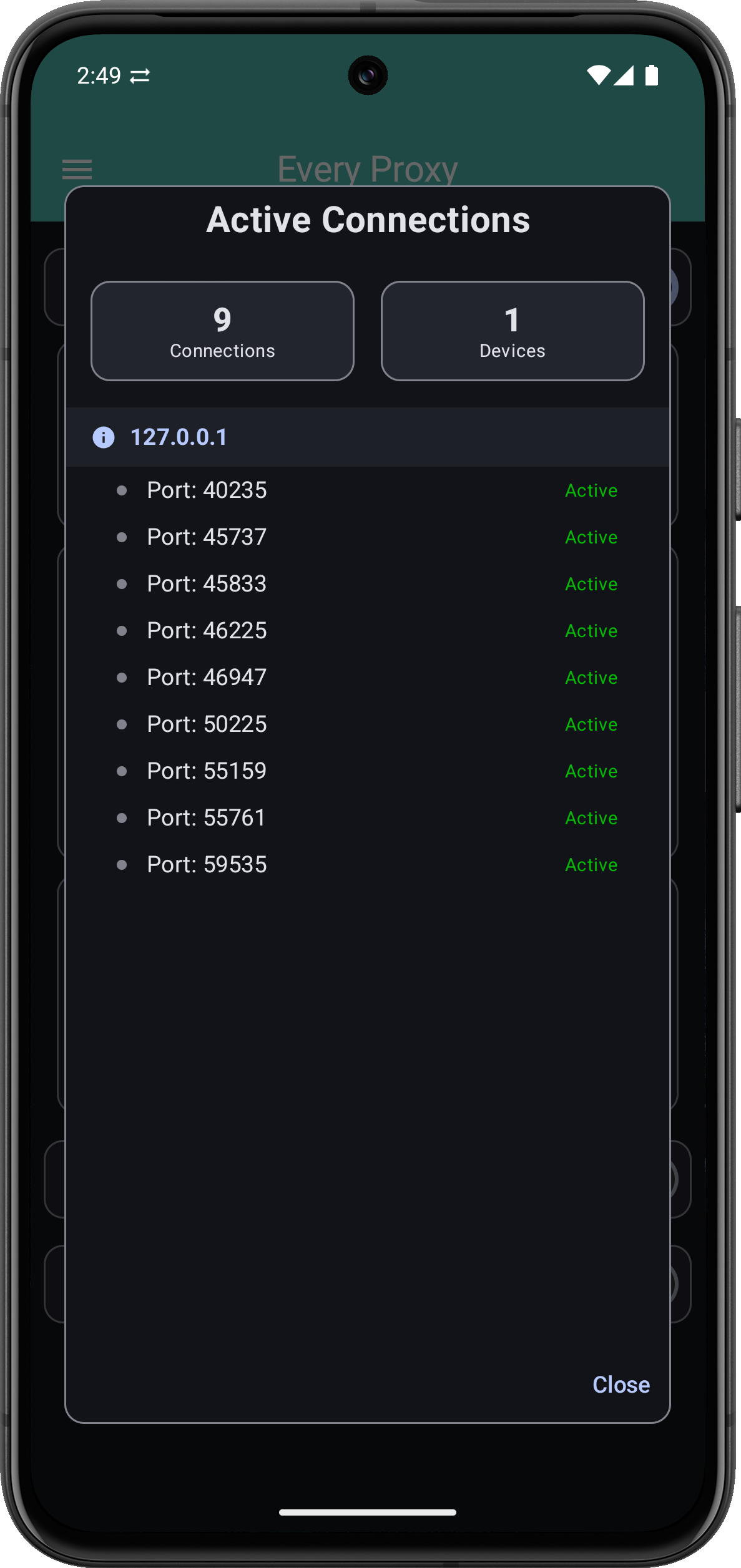
The Connections inspector provides a live, continuously updating view of all open sockets traversing your proxy servers and VPN client tunnels.
What You Can See:
- Client IP & Port: The exact local or remote IP address of the device making the request.
- Target Host & Port: The destination endpoint (e.g.,
api.example.com:443). - Connection Lifecycle: Real-time indicators of connection states, active sockets, and recently closed sessions.
- Dual-Mode Inspection: Works for both inbound proxy servers (HTTP, HTTPS, SOCKS) and outbound client tunnels (Tun2Socks, Tun2Http).
Practical Diagnostic Uses:
- Verify Client Configuration: Instantly confirm whether a workstation, console, or smart TV is properly directing traffic through Every Proxy.
- Detect Background "Ghost" Traffic: Identify rogue background processes or IoT devices generating unexpected connections.
- Multi-Device Isolation: Monitor multiple client devices simultaneously on the same local network.
2. Diagnostic Session Log & JSON Export
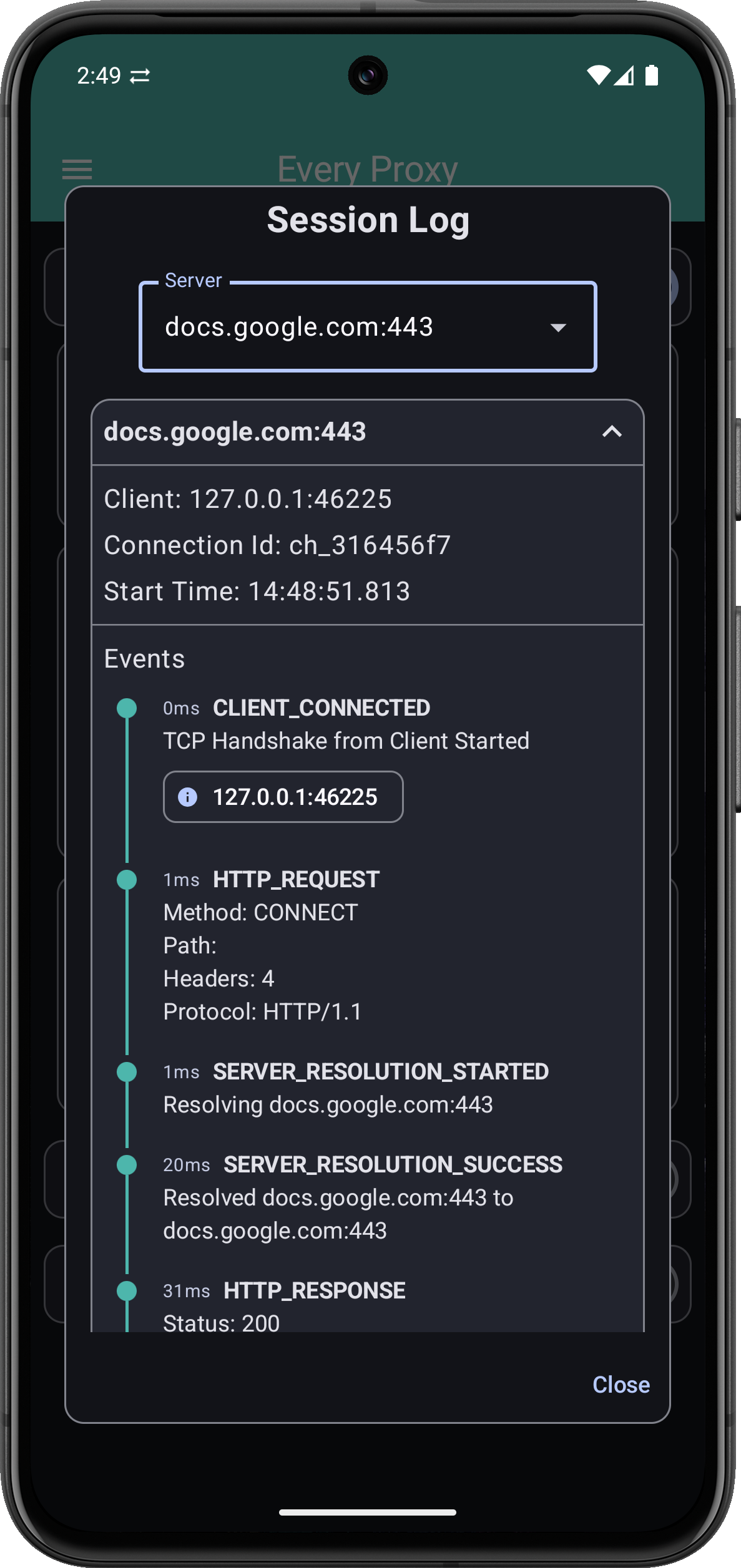
While the Active Connections dialog provides a live snapshot, the Session Log captures a chronological audit trail of proxy traffic.
Comprehensive Session Telemetry:
- Protocol Negotiation: Verify HTTP
CONNECTmethods, SOCKS4/SOCKS5 handshakes, and authentication events. - UDP Destination Tracking: Monitor UDP associate sessions and see destination IP endpoints and ports for SOCKS5 and Tun2Socks traffic.
- Timing & Latency: Inspect connection start times, total session durations, and transfer metrics.
- JSON Log Export: Export full session history directly to a standard JSON file. Import your logs into Wireshark, jq, Elasticsearch, or custom QA scripts for automated analysis.
{
  "connectionId": "ep-91823",
  "clientIp": "192.168.1.145",
  "clientPort": 52410,
  "targetHost": "api.github.com",
  "targetPort": 443,
  "protocol": "SOCKS5",
  "bytesReceived": 14208,
  "bytesSent": 3120,
  "durationMs": 340,
  "status": "CLOSED"
}
3. Custom Routing Rules Engine

The Routing Rules engine enables dynamic traffic rerouting on a per-proxy basis directly inside Every Proxy.
Instead of modifying host files or configuring DNS servers on every connected client, you can define surgical rerouting rules within the proxy itself:
- FROM Host & Port: Define the incoming target hostname or IP address and port that a client intends to reach (e.g.
api.myservice.com:443). - TO Host & Port: Specify where Every Proxy should redirect that traffic instead (e.g.
staging.myservice.com:8443or192.168.1.50:443).
Common Scenarios:
- Local Staging Redirection: Redirect production API requests to local development servers or staging endpoints on your local network.
- Port Remapping: Translate traffic from default ports to custom mock service ports without altering application code.
- Endpoint Isolation: Blacklist or sinkhole specific tracking or analytics domains by pointing them to a local loopback null route.
How to Upgrade
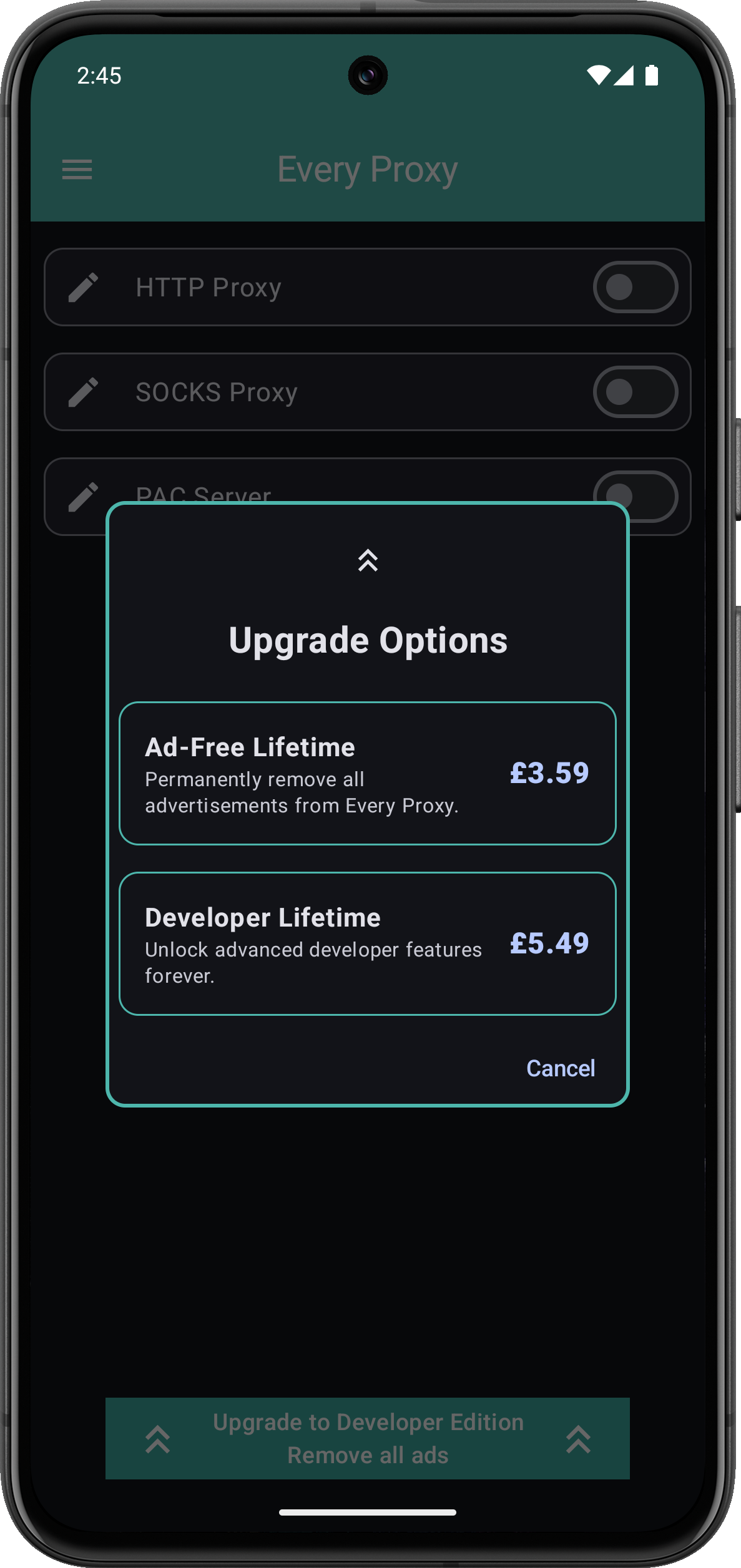
- Open Every Proxy on your Android device.
- Tap the Menu icon (three horizontal lines) in the top-left corner.
- Select Upgrade Options.
- Choose either:
- Ad-Free: To solely remove all banner and interstitial advertisements.
- Developer Edition: To unlock the full developer diagnostic suite and remove ads forever.
- Complete the purchase via Google Play's secure checkout.
Upgrading from Ad-Free to Developer Edition
If you previously purchased the standalone Ad-Free upgrade, you do not have to pay full price for the Developer Edition!
When you open Upgrade Options, the app detects your existing purchase and automatically offers a discounted Developer Upgrade SKU so you only pay the difference to unlock the diagnostic tools.
Troubleshooting In-App Purchases
If you have already purchased an upgrade but features appear locked or ads are still visible:
- Verify Google Account: Ensure your phone is signed into the Google Play Store with the exact email address used for the original purchase.
- Restart the App: Slide Every Proxy out of your recent apps list and reopen it with an active internet connection so Google Play's billing cache can synchronize.
- Clear Play Store Cache: If Google Play billing is slow to respond, go to Android Settings → Apps → Google Play Store → Storage → Clear Cache, then reopen Every Proxy.