Android Background Stability & Permissions Guide
Because Every Proxy functions as a persistent local network gateway, Android must allow it to run continuously in the background without being suspended or having its network sockets closed.
This guide explains how to configure Battery Optimization, manage Foreground Notifications, and grant Local Network Permissions on modern Android versions.
1. Battery Optimization (Prevent Background Sleep)
Android's built-in battery management saves power by freezing background apps and closing inactive sockets. If Android optimizes Every Proxy or the Network Bridge, your connected devices will immediately lose internet access whenever your phone screen turns off.
Configuration by Manufacturer
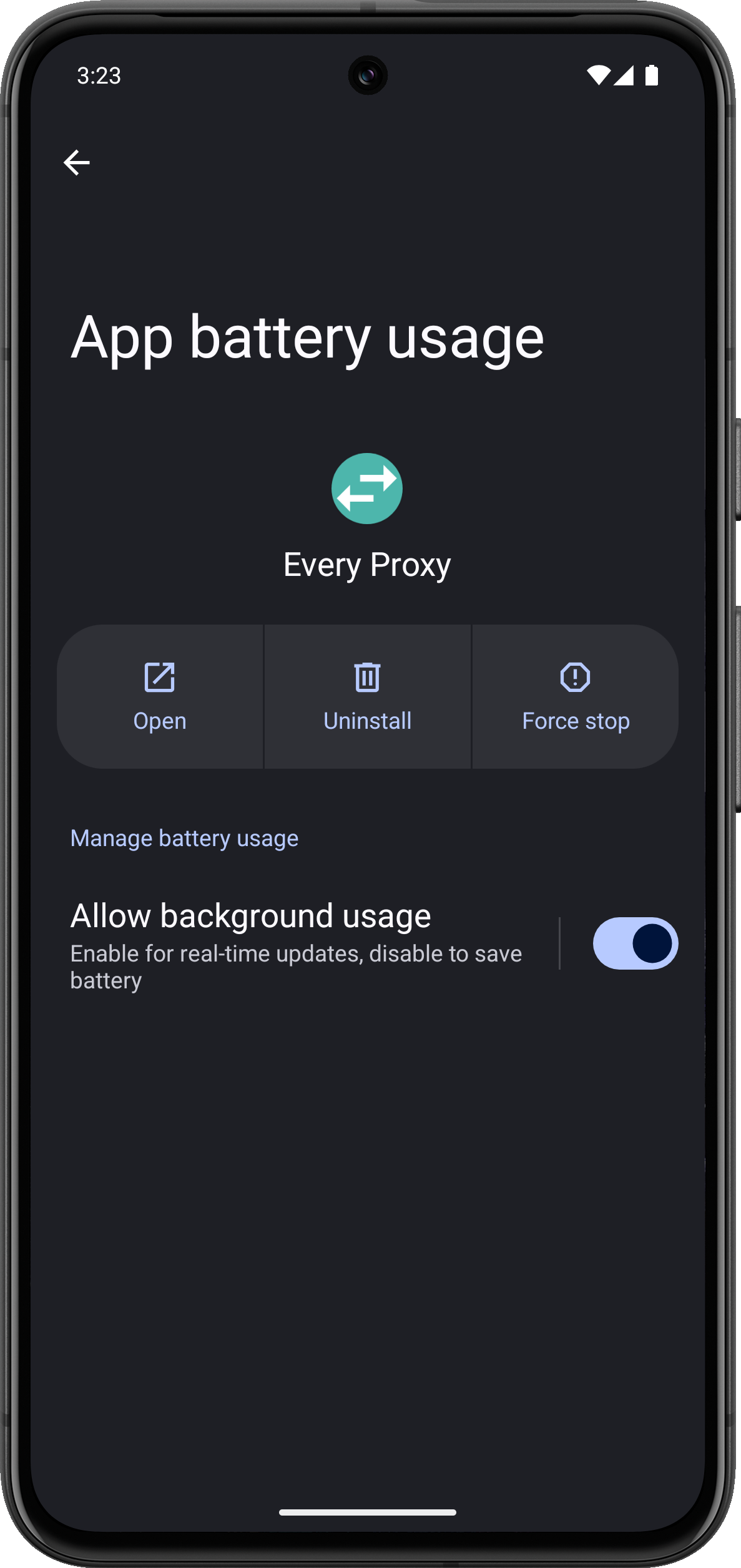
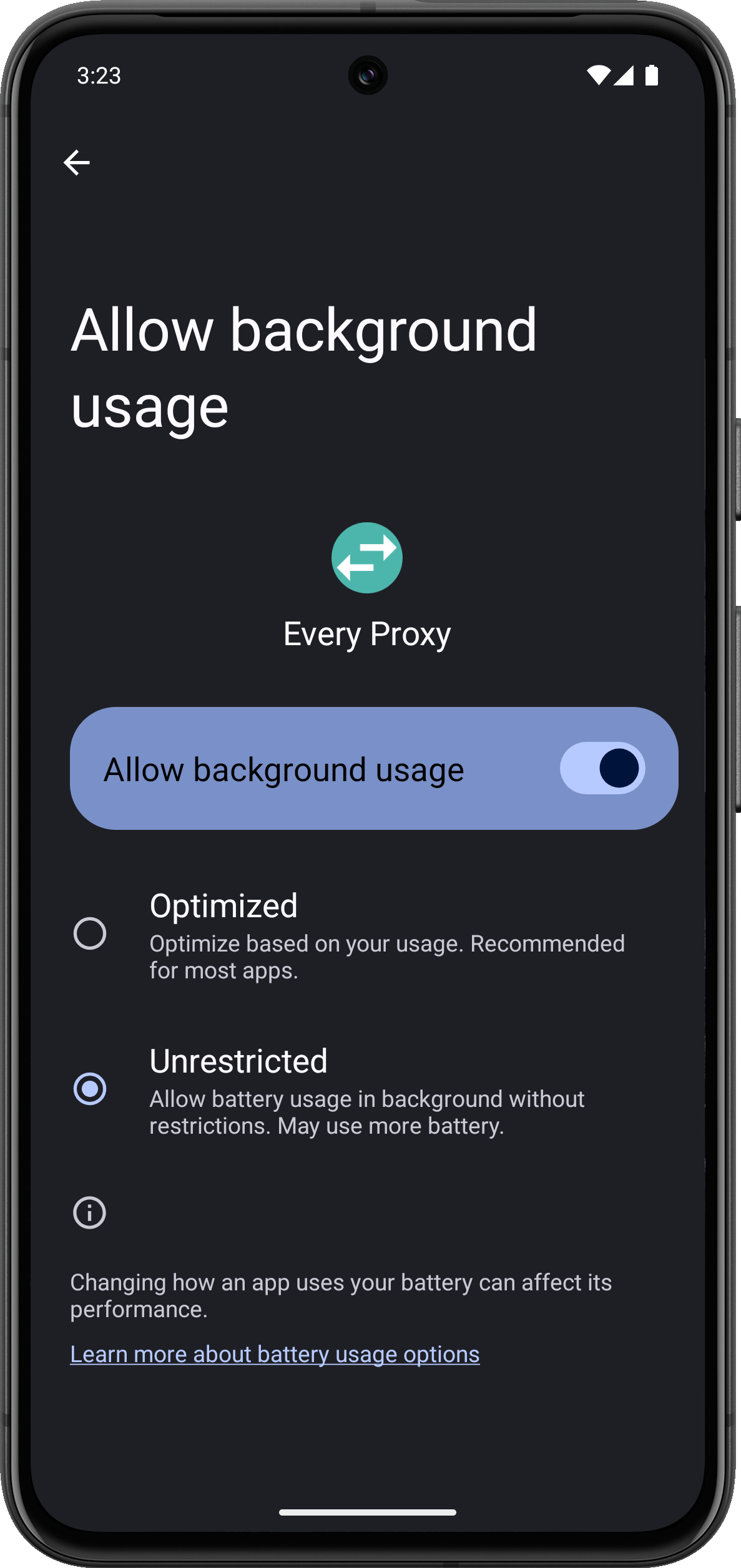
Modern Android versions use three power profiles. By default, apps are set to Optimized, which is insufficient for persistent proxy routing.
- Recommended Setting: Set to Unrestricted.
- Step-by-step:
- Open Android Settings → Apps → Every Proxy.
- Tap App battery usage (or Battery).
- Select Unrestricted.
Samsung's One UI aggressively places background apps into "Deep Sleep".
- Recommended Setting: Add Every Proxy to Never sleeping apps.
- Step-by-step:
- Open Settings → Battery and device care → Battery.
- Tap Background usage limits.
- Tap Never auto sleeping apps → tap + and add Every Proxy (and the Network Bridge if installed).
Xiaomi devices enforce strict background kill rules and prevent apps from autostarting.
- Recommended Setting: Set to No restrictions and enable Autostart.
- Step-by-step:
- Open Settings → Apps → Manage apps → Every Proxy.
- Set Battery saver to No restrictions.
- Enable the Autostart toggle switch.
- Recommended Setting: Enable Allow background activity and Allow auto-launch.
- Step-by-step:
- Open Settings → Apps → App management → Every Proxy.
- Tap Battery usage.
- Enable Allow background activity and Allow auto-launch.
Other Manufacturers
If your brand is not listed above, visit DontKillMyApp.com, a community-maintained resource detailing background app retention steps for virtually every Android vendor.
2. Foreground Service & Notifications
Every Proxy relies on an Android Foreground Service with an ongoing notification. This serves two vital roles:
- Process Protection: Tells the Android operating system that Every Proxy is performing user-critical work, preventing the OS Low Memory Killer (LMK) from terminating the process.
- Diagnostic Visibility: Displays your active listening IP address, ports, and critical error messages (such as port conflicts or bridge initialization issues).

Ensuring Notifications are Enabled:
- Go to Android Settings → Apps → Every Proxy.
- Tap Notifications.
- Ensure Allow notifications is turned ON.
(Repeat these steps for the Every Proxy Network Bridge if you are using it).
Hiding the Status Bar Icon Without Breaking the Service:
If you do not want the proxy icon cluttering your status bar: * Long-press the Every Proxy notification in your notification shade. * Select the settings gear → set the notification channel to Silent or Minimized. * The proxy will continue running safely as a foreground service without showing an icon on your top bar.
3. Network Permissions (Android 14, 15, and Newer)
Recent Android security updates introduced local network isolation sandboxes. Without explicit system permissions, Android blocks applications from binding to local network sockets (0.0.0.0), resulting in socket configuration errors.
Every Proxy uses three key permissions:
| Permission | Technical Name | Purpose |
|---|---|---|
| Access Local Network | android.permission.ACCESS_LOCAL_NETWORK |
Allows the proxy engine to bind to 0.0.0.0 so other devices on Wi-Fi/Hotspot can connect. |
| Use Loopback Interface | android.permission.USE_LOOPBACK_INTERFACE |
Permits internal communication between Every Proxy and the Network Bridge over localhost. |
| Nearby Wi-Fi Devices | android.permission.NEARBY_WIFI_DEVICES |
System-level umbrella permission that permits local socket routing without sandbox blocks. |
How to Manually Grant Permissions:
If you accidentally denied permissions during initial setup: 1. Open Android Settings → Apps → Every Proxy. 2. Tap Permissions. 3. Under the Denied section, select Nearby devices (or Local network). 4. Change the setting to Allow. 5. Swipe Every Proxy out of your recent apps switcher and relaunch it.
Stability Checklist
Before troubleshooting network or routing issues, verify these four items:
- [ ] Battery: Every Proxy set to Unrestricted / No restrictions?
- [ ] Notifications: Persistent foreground notification is active?
- [ ] Permissions: Nearby devices / Local network permission granted?
- [ ] VPN Settings: If using an Android VPN, is "Allow local network traffic / LAN" turned ON in your VPN app?